-
What you need
- The Xiegu X6100.
- A good microSD card, 8 to 32 GB. The image is about 550 MB; the extra space is for logs, recordings and pictures.
- A computer (Windows, macOS or Linux) with a card reader.
- Recommended: baseband r13 by Georgy Dyuldin R2RFE (x6100_base_patch), for the TX and calibration options and the battery percentage.
-
Updating? Save your data first
Writing the image erases the whole card, including the DATA partition with settings, logs, memories and pictures. Before you start, open the radio's web page in a browser (
http://<radio IP>/), go to Backup and download the file. After the update, load it back from the same page and choose what to restore. -
Download the firmware
Log in to your account (it's free) and download the SD image of the latest version: a file called
X6100-IU1WXY-v<version>-sdcard.img.zip, about 100 MB. No need to unzip it, balenaEtcher reads it as it is. -
Write the image with balenaEtcher
- Download and install balenaEtcher (free) and put the microSD card in the computer.
- Open balenaEtcher and press Flash from file: choose the
.img.zipfile you downloaded. - Press Select target and choose the microSD card. Check name and size carefully: everything on the chosen disk is erased.
- Press Flash! and wait for the writing and the verification to finish, a few minutes.
- When Flash Complete shows up, take the card out. If Windows offers to format it, answer Cancel: it can't read the radio's partitions, but they are fine.
Raspberry Pi Imager or Rufus work too, or
ddon Linux. -
Switch the radio on
- With the radio off, put the microSD card in the slot.
- Switch on: the IU1WXY logo shows, then the main screen. The first time it takes a little longer, because it creates the DATA partition where settings and logs are kept.
-
First settings
- Callsign and locator: APP → Settings → General → STATION. FT8, JS8, WSPR, the DX cluster and Field Ops need them.
- WiFi: Settings → Wireless, choose the network and enter the password. With WiFi the radio also sets its clock.
- Time zone: Settings → General, for the local time on the screen.
- If you made a backup, load it now from the radio's Backup page.
- To control it from your phone there is the X6100 Link app.
Update without the microSD (from v0.127)
If your radio already runs v0.127 or newer, a version that changes only the radio's interface and apps, and not the system underneath (kernel, drivers, libraries), can arrive over WiFi: no card to take out, no computer. A version that also changes the system, like 0.127, has to be written to the microSD, and the update says so. The radio stays on, its screen restarts once for 10-20 seconds, and settings, logs, memories and pictures stay where they are. If something goes wrong, the radio goes back to the version it had by itself: nothing is lost.
The Versions page says for each version whether it comes this way (app update, no flashing) or needs the card rewritten (full image needed).
Before you start: the radio is on and connected to WiFi, on the same network as your phone or computer.
From the X6100 Link app (the easiest)
- Open the app, connected to the radio as usual.
- Go to SET → Update → Radio app update. The top line shows the version the radio has now: On the radio: 0.127.
- Press CHECK. You see Version X available with what's new, or The radio already has the latest
version, or No update available.
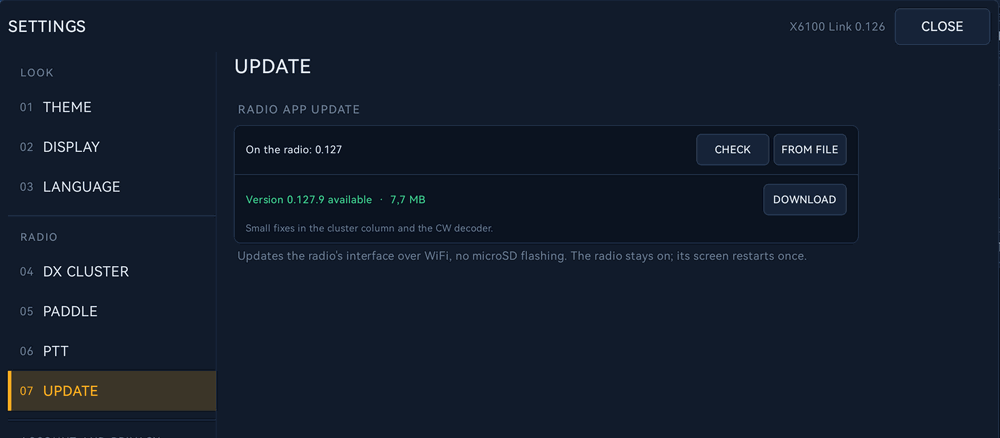
- Press DOWNLOAD. The package is saved in the phone's Download folder and the line shows
x6100-app-<version> ready.
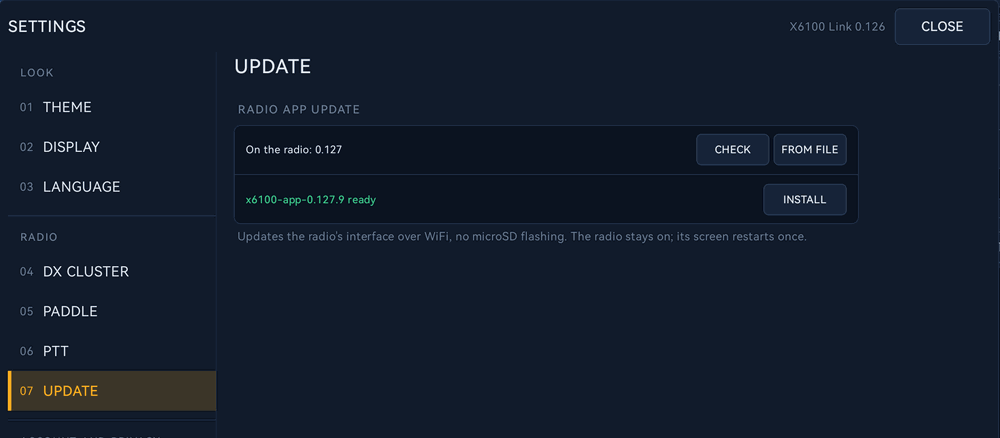
- Press INSTALL and leave the app open. The line below goes through Sending to the radio…, The radio is checking the package…, Installing… and The radio's interface is restarting….
- Meanwhile the radio's screen closes, shows the start screen for a few seconds and comes back to the main screen
with Update installed: version X.
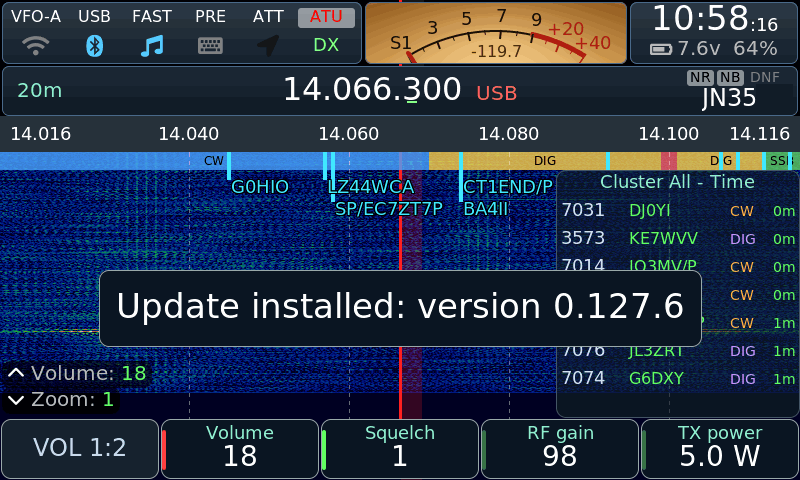
- The app ends with Done: the radio now runs X.
In short: CHECK → DOWNLOAD → INSTALL. If the new version needs the card rewritten, the button becomes DOWNLOAD IMAGE and opens the Versions page. FROM FILE is only for a package you got some other way. The file left in Download is also the one to copy by hand, see below.
From the radio itself
If the radio is connected to the internet (WiFi or Ethernet cable) it can update without phone or computer.
- Open Settings → Update. On the App update line there is the Check button.
- Choose Check: the radio asks x6100-link.it. If there is a new version the line below says
Version X available: press Install. and the button becomes Install; otherwise it says the radio is up to date.
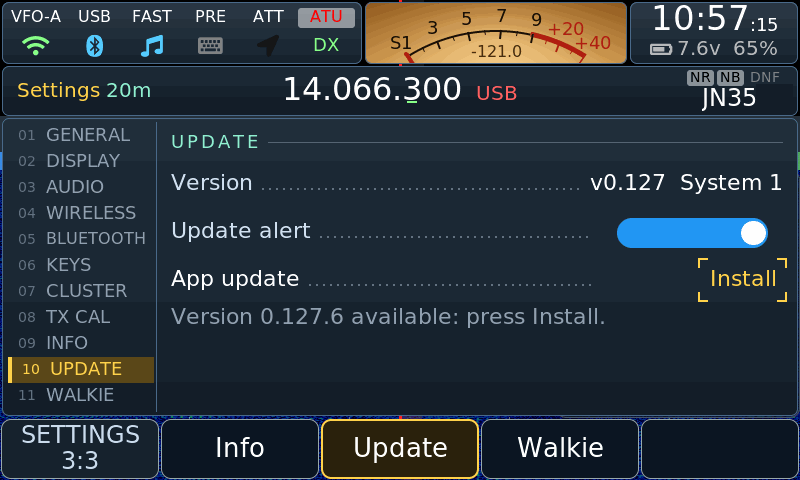
- Choose Install. The line below follows it: Downloading 3.1 of 7.7 MB while the package arrives, then the screen restarts once and the line says Checking the new version... (2 min) while the radio makes sure the new version runs well.
- At the end the line says Version X installed. and the screen shows Update installed: version X.
Over the radio's WiFi the download can take a few minutes; with the Ethernet cable it is quicker.
From the radio's web page
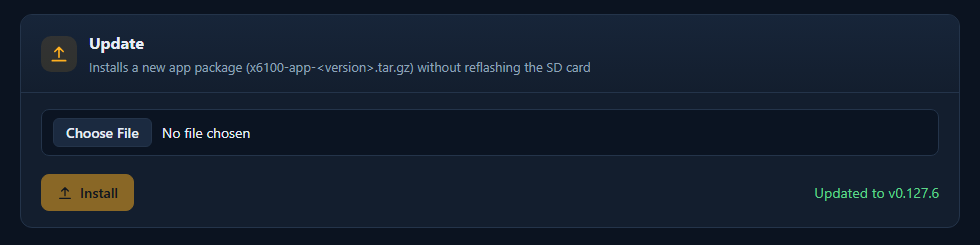
- On the Versions page press App package and save the file
x6100-app-<version>.tar.gzon your computer. - Open the radio's web page in a browser:
http://<radio IP>/. The IP is in Settings → Wireless. - In the Update section choose the file and press Install.
- The status line tells you what the radio is doing. Leave the page open until it says the update is installed.
By hand, with the card
- Download the package from the Versions page (App package), or take the one the app saved in the phone's Download folder.
- Switch the radio off, take the microSD out and put it in the computer.
- On the DATA partition, copy the file into the
updatefolder (create it if it isn't there). Don't unzip it. - Put the card back in the radio and switch on. At start the radio checks the file and installs it.
- Afterwards the file is moved to
update/done. If it couldn't be installed it goes toupdate/failed, next to a short text file that says why.
Which version do I have?
Settings → Update shows the firmware version and, next to it, the system: System 1. The system changes only when a version needs the card rewritten.
If a message shows up
The app, the web page and the radio use the same words. What they mean and what to do:
- This update needs a new microSD image. Please update by flashing the microSD card.
This version changes the system too: write the card as in the steps at the top of this page, backup first. - This radio can't update itself yet: flash image 0.127 or newer first
The radio has a version older than 0.127: write the card once, then the next versions arrive over WiFi. - The update did not work: the radio went back to the previous version. Nothing is lost.
(on the radio: The update did not start correctly, was interrupted or could not be installed.
The previous version has been restored.)
The radio is as it was before. Try again. If it happens again, write the card and tell me. - This file is not an official update. Download it again from x6100-link.it. /
The update file is damaged. Download it again.
The file is not the one from this site, or it arrived broken: download it again from the Versions page. - This file is not an update for the radio. / Choose an update file first.
Choose thex6100-app-…tar.gzfile, not the SD image (.img.zip). - Not enough space on the radio for the update.
Delete some screen or RX recordings from the Gallery page of the radio's web page, then try again. - The radio stopped answering while the file was sent.
Check that the radio is on and on the same network as the phone, then try again. - Another update is in progress. Please wait.
An update is already running: wait for it to finish. - The upload was interrupted. Please try again. / The update could not be checked. Please try again.
Try again; if it keeps happening, switch the radio off and on and retry.
Writing the microSD is always possible
The steps at the top of this page always work, whatever version the radio has. The update without the microSD is experimental: if a problem ever comes up, rewriting the card always fixes it. Write the card:
- if you prefer the full image to the update over WiFi;
- if the radio stays stuck, does not come back to the main screen or no longer connects after an update;
- if an update fails more than once;
- when the app or the radio asks for a new microSD image.
Writing the card starts clean: it erases everything on it, settings, logs and pictures included. If the radio still works, download the Backup from its web page first and load it back afterwards.
Back to the original firmware
Switch the radio off and take the microSD card out: next time it starts with the Xiegu firmware. To come back to this firmware, just put the card back in.
Something wrong? Report it here. Everything else is in the guide.